Composite Profile
Calculate properties of composite profiles.
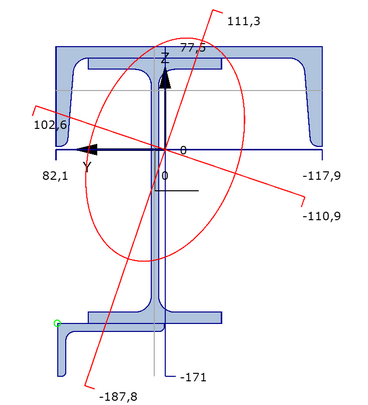
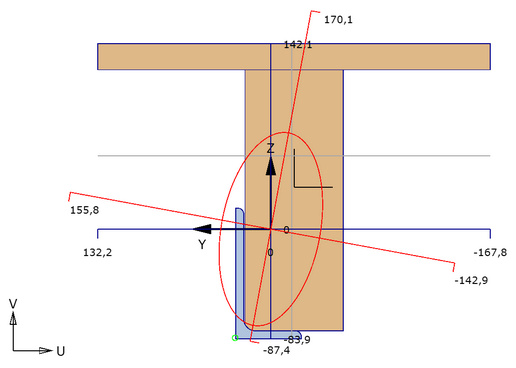
Features
- Build composite cross-sections from multiple elements
- Calculate combined section properties
- Graphical input available
Input
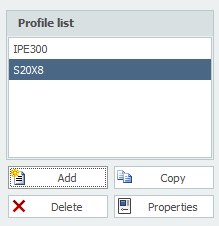
Here you can Add, Copy and Delete profiles. With Properties you can choose a different profile or adjust the profile dimensions.
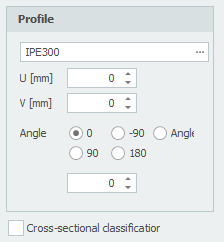
| Field | Description |
|---|---|
| Profile name | Enter the profile name here, or select it from the profile database. See the special input syntax below |
| U | Coordinate u of the profile, in mm |
| V | Coordinate v of the profile, in mm |
| Angle | Angle of the profile, in degrees |
| Cross-section classification | You can set whether the cross-section classification of the steel profile should be calculated |
Special profile input
Besides selecting a profile from the database, you can type one of the following:
| Shape | Syntax | Example |
|---|---|---|
| Halved H section | 1/2 profilename [ - minsize ] |
1/2IPE300 or 1/2HE650B-5 |
| Rectangle | S width x height or F width x height |
S200x12 |
| Hole | G width x height or H width x height |
G50x25 |
| Round | R diameter |
R50 |
| Tube (segment) | R diameter x thickness [ / angle1 / angle2 ] |
R500x12 or R500x12/0/180 |
| Triangle | D height x width or T height x width |
D50x60 |
Graphical input
A graphical representation of the complete composite cross-section, showing by default the cross-sections of all profiles (with the active profile in a different colour), the axis system, the position of the centroid, the principal axes of inertia, and the distances.
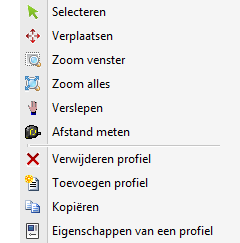
With the right mouse button you open the menu.

| Function | Description |
|---|---|
| Select | Select a profile and make it active. Move the cursor inside the contour of the profile and press the left mouse button |
| Move | Move profiles graphically. They snap automatically to fixed and known points, which makes moving very simple. You can also adjust the coordinates (U, V) numerically |
| Zoom window | Zoom in on a particular part of the cross-section drawing. Hold the left mouse button and drag a rectangular window from bottom-left to top-right. The mode switches off automatically once zoomed |
| Zoom all | Show everything. The mode switches off automatically once zoomed out |
| Pan | Hold the left mouse button to drag the drawing |
| Measure distance | Measure distances. It snaps automatically to all contour points and to the midpoints of all line segments |